
At a glance
- After signing up you'll receive two emails: a welcome to Teachworks, our scheduling platform, and a confirmation of your first lesson with the date, time and link to join the call.
- In Teachworks you can see your child's lessons in a calendar, cancel a lesson (at least 24 hours in advance), request extra lessons and view invoices.
- Invoices arrive by email at the end of each month, due within 14 days. Pay by credit card or bank transfer.
- Lessons take place in Lessonspace, an online classroom with video and an unlimited whiteboard. Join from the reminder email or from Teachworks.
- Before the first lesson, email your tutor your child's current topics and upcoming assessments. A drawing tablet helps but isn't required.
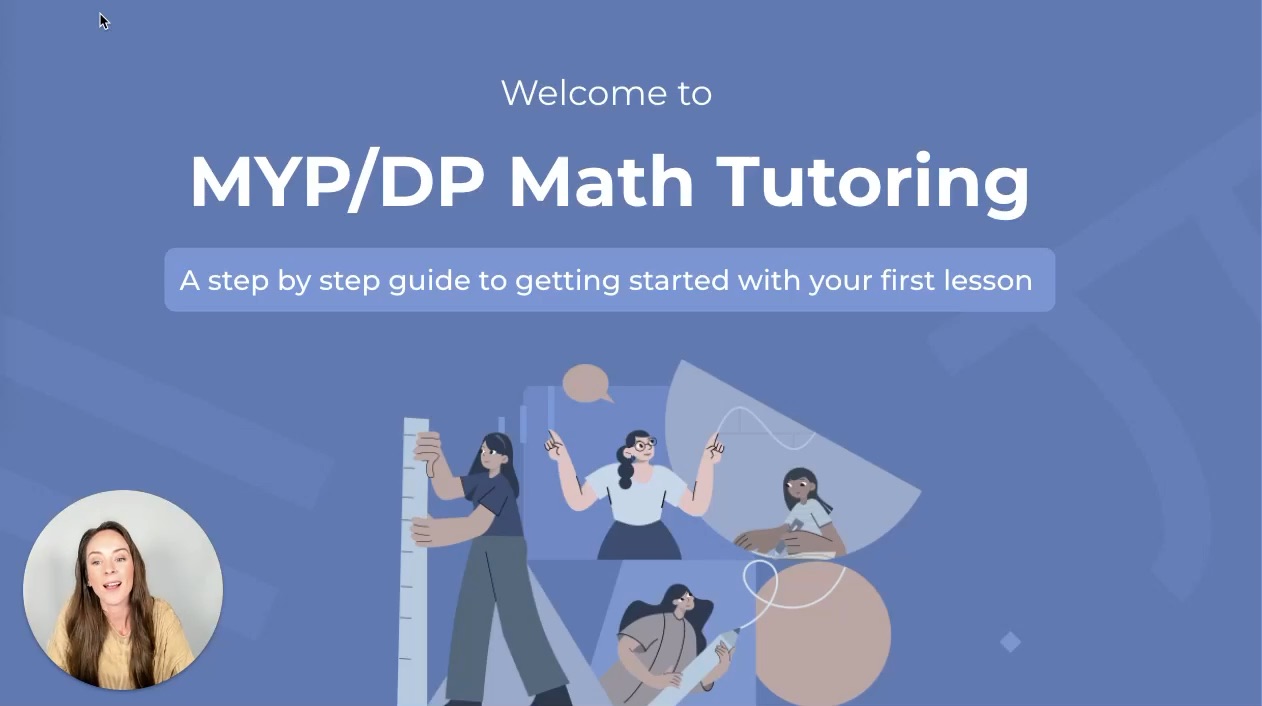
Prefer to watch? Shannon walks through every step in this video (4:49).
-
Part 1
Emails, Teachworks and payment
-
Part 2
Lessonspace
-
Part 3
The first lesson
Emails, Teachworks and payment
What emails will I receive after signing up?
Once your lessons are confirmed, you'll receive two important emails.
Welcome to MYP Math Tutor
MYP Math Tutor to meHi Rachel,
Welcome to MYP Math Tutor. We've created an online account for you that will allow you to view or manage your schedule, availability, contact information and more.
You will receive an email shortly to confirm your account and set your password.
Once confirmed you can log into your account here: mypmathtutor.teachworks.com/accounts/login
Teachworks is our scheduling platform. This email has a special link to set up your login and password. It's optional, but we recommend it so you can manage all of your lessons in one place rather than relying only on email.
1Joey's first math tutoring lesson: Wed, June 11 at 17:00
MYP Math Tutor to you, cc your tutorDear Rachel,
We've organized for Joey to start tutoring with us. A few important details:
2The link to join the call: thelessonspace.com/space/…
3To cancel or reschedule, please let us know at least 24 hours in advance.
4The invoice will be sent at the end of each month.
Save the confirmation email. It has everything you need for the first lesson, so it's easy to find again.
How do I log in to Teachworks?
There are two ways to get to your Teachworks dashboard:
Bookmark the link
Save the login link from the welcome email in your browser.
What will I see in Teachworks?
As a parent, your landing page is the calendar. It shows lessons that have already happened and lessons scheduled for the future. A small symbol on each lesson tells you what happened:
One lesson per week, as it appears in the month view. Today is highlighted in yellow.
How do I cancel a lesson?
- 1
Click the lesson in the calendar.
- 2
Select View.
- 3
Click Cancel Lesson and confirm.
You'll receive an email confirmation. You can also refresh the page and the lesson will show as cancelled on the calendar.
Can't see the cancel button? Inside the 24 hours before a lesson it no longer appears, because it would be a late cancellation. If something comes up, get in touch with your tutor directly.
How do I request an extra lesson or reschedule one?
You can click the green Request a Lesson button, but we recommend checking your tutor's availability first. That way you can pick a time that suits you and is likely to suit your tutor too.
- 1
Switch the calendar to Week view.
- 2
Under Teacher Availability, select your tutor and click Submit. Times your tutor isn't available turn grey.
- 3
Click a free time. Select your child's name and the rest fills in automatically. Add a comment if you like.
- 4
Click Submit. Your tutor will reply within 24 hours to accept, or to let you know if that time doesn't work.
Week view after selecting a tutor. The blue lesson is the new request.
How does payment work?
At the end of each month you'll receive an invoice by email, due within 14 days. You can also find every invoice under the Billing tab in Teachworks. Payments go through our secure platform.
New Invoice Available
MYP Math Tutor <[email protected]>Hi Rachel,
You have a new invoice for 01/05/2025 to 31/05/2025 available.
The invoice balance is €340.00.
Due date for this invoice is 16/06/2025.
To view and pay your invoice, click the link below or log into your account. INV-9999
Payment options
- When: end of each month
- Due: within 14 days
- Where: email, or Billing in Teachworks
Lessonspace, where learning happens
What is Lessonspace?
Lessonspace is our interactive teaching platform, built for online learning. It's where your child will learn and grow each week.
An example lesson in Lessonspace.
Video conferencing
Your child and tutor see and hear each other throughout the lesson.
An unlimited whiteboard
Both of them can write and draw at the same time, which is great for showing mathematical thinking.
Organized tabs
Several whiteboards and documents in one lesson, kept tidy for collaborative learning.
There are several tools on the whiteboard:
- Writing pen
- Highlighter
- Shapes
- Typing
- Screen capture
With an iPad or a writing tablet, your child can draw with ease using the pen tool. If you don't have one, that's okay: the screen capture tool can take a photo of their notebook so the tutor can give feedback.
Tutors also add tasks to the whiteboard, either from your child's class or from our own resource bank, so they can lead inquiry and exploration in real time.
How does my child join the lesson?
There are two ways to join the call:
From the reminder email
Check your email 6 hours before the lesson. The reminder has a link to join the call. It's the same link you received when the lesson was first scheduled.
Hi Rachel,
This is a reminder that Joey has a lesson scheduled for 31/01/2025 from 17:15 to 18:15 (Paris) at Online Lesson Space.
Thanks,
MYP Math Tutor
From Teachworks
- 1
Log in and click the lesson.
- 2
Select View.
- 3
Click Launch Online Lesson Space.
The call opens in a new tab. Click Allow to give access to the camera and microphone, and the lesson can begin.
Preparing for the first lesson
How can my child prepare for the first lesson?
Use a drawing tablet if you have one
It's hard to share mathematical thinking and diagrams by typing. An iPad or a writing tablet like the One by Wacom really improves the experience. They're not necessary, but if you have one at home, have it ready for the first lesson.
Email the tutor what's happening in class
Send your child's syllabus, current work or upcoming assessments in advance, so the tutor can tailor the lesson. If your child does this every week, it really helps the tutor prepare.
Current topics
To: your tutorHi Shannon,
I'm currently working on geometry (area and perimeter) and we have a Criterion B coming up next week. Looking forward to our lesson on Wednesday!
Thanks,
Lukas
Have the basics nearby
A notebook and a calculator (if applicable), plus a quiet spot with a good internet connection.
What happens in the first lesson?
The tutor gets to know your child and starts teaching right away. Here's how it usually goes:
Introductions
The tutor introduces themselves and gets to know your child.
Reviewing materials
They look through the topics and work you've shared.
Personalized learning goals
Your child and tutor set goals together.
Get started!
They begin teaching topics in the very first lesson.
Thank you for choosing MYP Math Tutor
We know that starting something new can feel like a big step. Our team is here to make the process smooth and supportive, and we're thrilled to support your child's math journey.
If you have any questions or run into a problem with any of these steps, get in touch with your tutor directly or email [email protected].
Emails and Teachworks
- Two emails: a Teachworks welcome and your lesson confirmation
- Use Teachworks to view, cancel (24 hours' notice) and request lessons
- Invoices monthly, due within 14 days
Lessonspace
- Video plus an unlimited whiteboard
- Join from the reminder email or Teachworks
- Allow the camera and microphone
The first lesson
- Email the tutor current topics and assessments
- Have a tablet, notebook and calculator ready
- Introductions, goals, then straight into learning
Frequently asked questions
Do I need to set up a Teachworks login?
It's optional, but we recommend it. With a login you can see all of your child's lessons in one calendar, cancel a lesson, request extra lessons and view invoices, rather than relying only on email.
What is the cancellation policy?
Lessons can be cancelled or rescheduled up to 24 hours before they start. Inside that 24-hour window the cancel button no longer appears in Teachworks, and the lesson counts as a late cancellation. The full policy is in your confirmation email and our Terms and Conditions.
How do I reschedule a lesson or book an extra one?
In Teachworks, switch the calendar to Week view, select your tutor and click Submit to see their availability. Click a free time, select your child's name, add a comment if you like and click Submit. Your tutor will reply within 24 hours.
When are invoices sent and how do I pay?
You'll receive an invoice by email at the end of each month, due within 14 days. You can also find it under the Billing tab in Teachworks. Pay securely by credit card (Visa or Mastercard) or by bank transfer.
Does my child need a drawing tablet for online lessons?
No, but it helps. An iPad or a writing tablet such as the One by Wacom makes it much easier to show working and draw diagrams on the whiteboard. Without one, your child can take a photo of their notebook with the screen capture tool so the tutor can give feedback.
Where do I find the link to join the lesson?
The join link is in your lesson confirmation email and in the reminder email sent 6 hours before each lesson. You can also log in to Teachworks, click the lesson, select View and then Launch Online Lesson Space.
Read the video transcript
Hi and welcome to MYP Math Tutor. I'm Shannon and I'm here to guide you through the steps to get started with your child's first lesson. In this first part, we'll discuss the first emails you'll receive upon signing up, registration with Teachworks, our scheduling platform, and our payment process.
You'll receive two important emails upon confirming your lessons with us. The first email will welcome you to Teachworks, our scheduling platform. It will provide you with a special join link so that you can set up your login and password. This is optional, but we do recommend it so that you can manage all of your lessons through the platform rather than relying only on email. The second email is the confirmation of your lessons and includes the date and time of the first scheduled lesson, the link to join the call, and some additional information such as our cancellation policy and details about monthly invoicing. Your tutor will also be copied in on this email, so you'll have their contact details at that time.
Now, to access the Teachworks dashboard, you can either bookmark the link from the welcome email or log in directly from our website homepage. Here's what you see when you log into Teachworks. As a parent, the landing page is the calendar, where you can see lessons that have already happened and scheduled lessons for the future. The check mark beside the lesson means that the lesson was attended. The X means that the lesson was missed or it was a late cancellation. And the line through it means that the lesson has been cancelled.
If you wish to cancel a lesson, you can click on the lesson, select View, and then click the Cancel button. If it is within the 24-hour window where it would be a late cancellation, that button isn't there. Once you have successfully cancelled the lesson, you should receive an email confirmation, but you can also refresh the screen and it will show on the calendar as well.
If you would like to request an additional lesson or reschedule a lesson, you can click the green button, but we actually recommend that you click on the week view, select your tutor, and click Submit. You can actually see all of their availability here, so then you can select a time that works for you and probably works for the tutor to request a lesson. You can select your child's name, the rest will auto-populate, and then you can put in any comments as an option as well. Once you click Submit, the lesson is requested, and within 24 hours you should receive some feedback from your tutor on whether it's accepted or whether we can't reschedule that lesson.
At the end of each month, you'll receive an invoice via email, due within 14 days. Payments can be made easily through our secure platform with a variety of payment options.
In part two, we will discuss our interactive video call software, Lessonspace. Lessonspace is our interactive teaching platform, featuring video conferencing software, an unlimited whiteboard, and organized tabs for collaborative learning. It's where your child will learn and grow each week. There are several tools, including a writing pen, highlighter, drawing shapes, and typing. And if you happen to be using a writing tablet or an iPad, you will be able to draw with ease using the pen tool. But if you don't have any of these tools, it's okay. There's a screen capture tool that can take photos of your notebook for feedback. We also make use of tasks, either from the student's class or from our own resource bank, so that we can lead inquiry and exploration in real time.
You can join your lesson in two ways. First, check your email 6 hours before your lesson. You'll receive a reminder with a link to join the call. This is the same link that you received when the lesson was first scheduled. Or you could log into Teachworks, click on the lesson, select View, and then Launch Online Lesson Space. This will open the call in a new tab, where you can give access to your video and microphone and start your call.
Finally, in part three, we'll discuss how to prepare for the first lesson to get the most out of it. For an engaging learning experience, we do recommend an iPad or writing tablet, like the one by Wacom. It's hard to communicate your mathematical thinking and diagrams by typing and using computer tools. So while they're not necessary, these drawing tools really enhance the experience. If you have one around the house, you can fire it up for the first lesson.
To help us tailor our lessons, please email your tutor your child's syllabus, current work, or upcoming assessments in advance. If your child can do this on a weekly basis, it really helps the tutor prepare for an effective lesson.
So, what can we expect in the first lesson? Your tutor will introduce themselves, review materials you've shared, co-create some personalized learning goals, and get started. They'll start teaching topics right in the first lesson.
Thank you for choosing MYP Math Tutor. We're thrilled to support your child's math journey. If you have any questions at all, please don't hesitate to reach out.

Shannon Mellon
Shannon has 10 years of international teaching experience, including previous roles teaching MYP Mathematics and Science at International School of Hamburg, and MYP and DP Mathematics as Head of Department at Nord Anglia International School in Dublin. Shannon is now a learning specialist for MYP and DP Mathematics at MYP Math Tutor, and also supports the team’s business development.
This work has been developed independently from and is not endorsed by the International Baccalaureate Organization.